
How to set up a Ladybird

This Knowledge Base document is where we can track our customer feedback and use the information to improve our product support documents.
Q: How do I add a Ladybird to the dashboard?
A: There are several ways to do this and the best way will depend on where you are starting from.
1: Add a new ladybird to an existing deployment in the dashboard.
Please refer to the section in your “Deployment Guide For Distributors” that has the title:
“Use QR code to deploy a Ladybird”
Scan the QR code on the ladybird or on the box that it came in to access the features below.
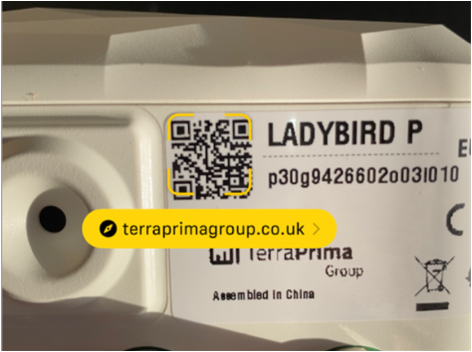
After scanning the QR code the link will bring you to the relevant section of the Dashboard.
NOTE: please make sure to sign in.
IMPORTAN NOTE: if you know the Serial Number of the ladybird you may access the same link by manually typing in the link on your browser dashboard:
https://dashboard.terraprimagroup.co.uk/scan/pd/<serial_number>.

So for example to access the settings for the ladybird with Serial Number p30xxxxxxxxxxxxxxxx you can use the following link: https://dashboard.terraprimagroup.co.uk/scan/pd/p30xxxxxxxxxxxxxxxx.
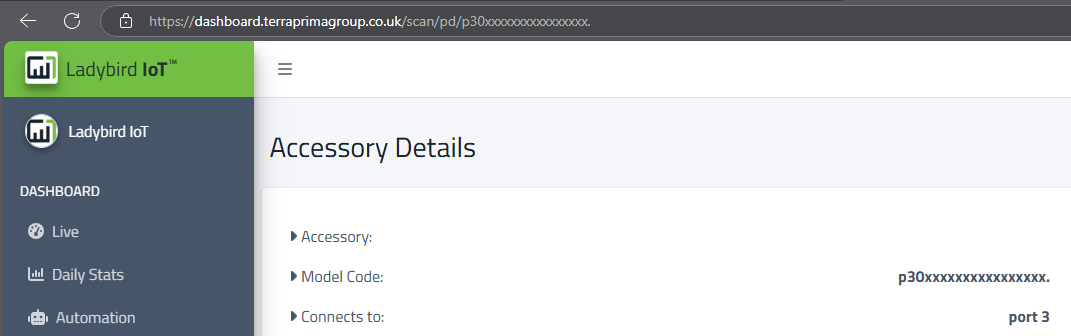
Please read through the deployment guide for distributors and follow the instructions carefully to ensure that you can actually use this method even if you don’t have the QR code in front of you.
If it is a new ladybird and it has not yet been assigned to any customer you will see below the message that the ladybird does not yet have an owner.
You will able to add it to any of your existing customers and locations by selecting an option.
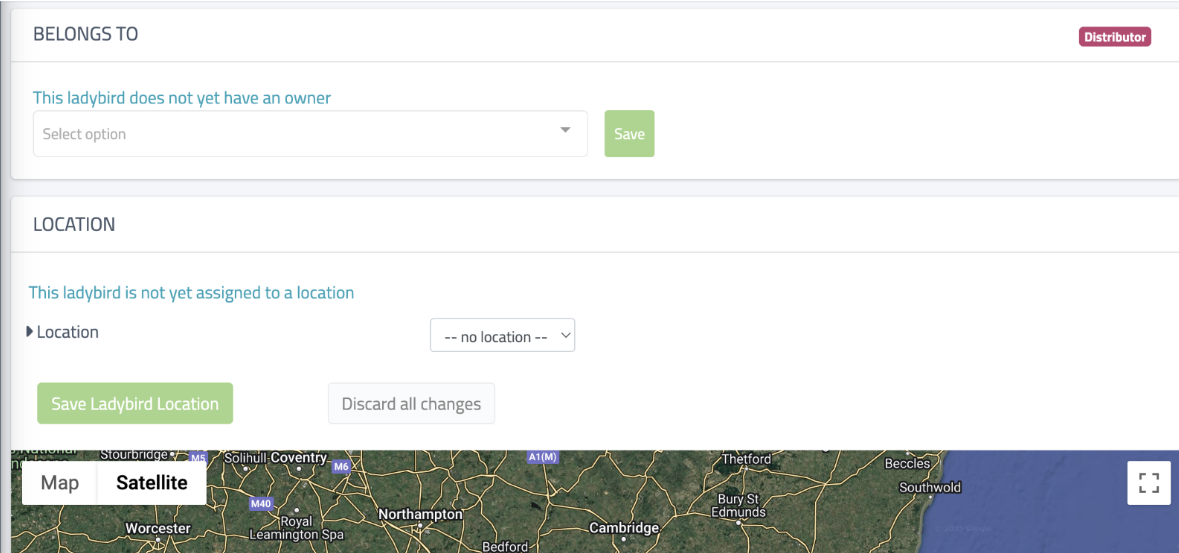
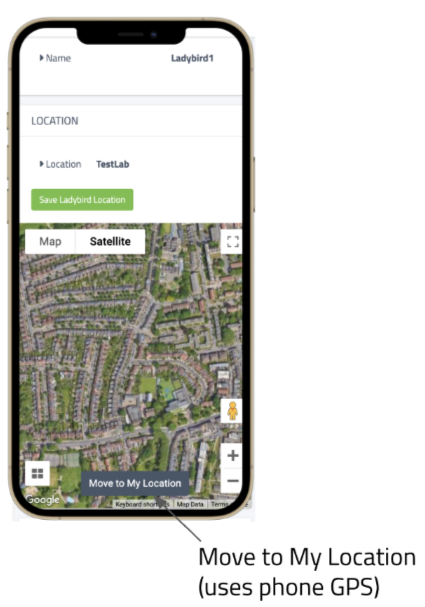
If you are on site you may use the GPS of your phone to find your exact location on the map more easily by just clicking on “My Location”.
2: Use a Ladybird as a Scanner.
This method involves using one of your ladybirds as a “Scanner”
(one that you know it is already installed or planning to install on the new location).
Once your scanner ladybird is connected it will detect all your other active ladybirds and assign them to the new location.
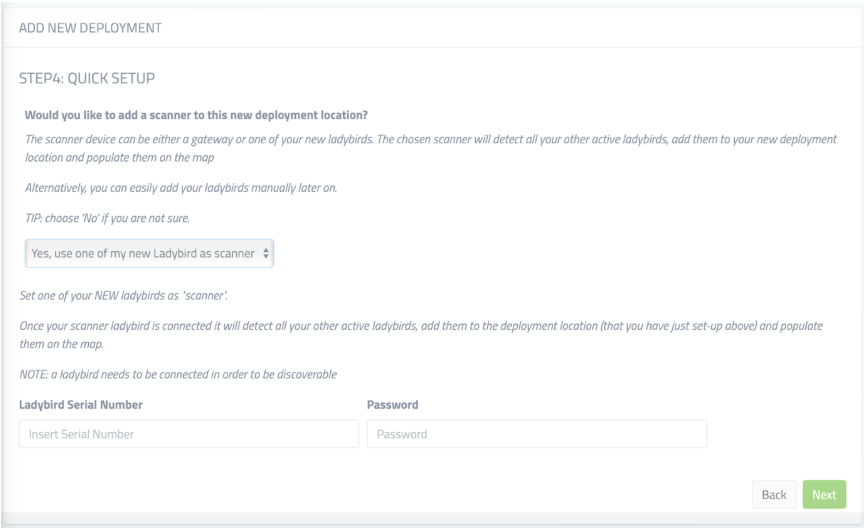
Click on Next and Add New Deployment.
Your new Deployment is now created and configured for you!
Next step is powering on your ladybirds.
NOTE: The password is the Ladybird Serial Number
Please Note: That the new ladybird will be placed on the map randomly around the centre but you can easily change their location later.
Summary Step.
The last step is simply a summary.
Please make sure all is Ok before clicking on “Save New Deployment”.
Optional Step.
If you would like to add an additional location to an existing deployment please follow the steps below:
On the left hand side menu select “Configuration”->Ladybirds->Locations or alternatively click on the following link: https://dashboard.terraprimagroup.co.uk/locations

Please refer to the first Section “Add New Deployment” in the attached, and in particular to Step 4 where the concept of Scanners is explained in more details.
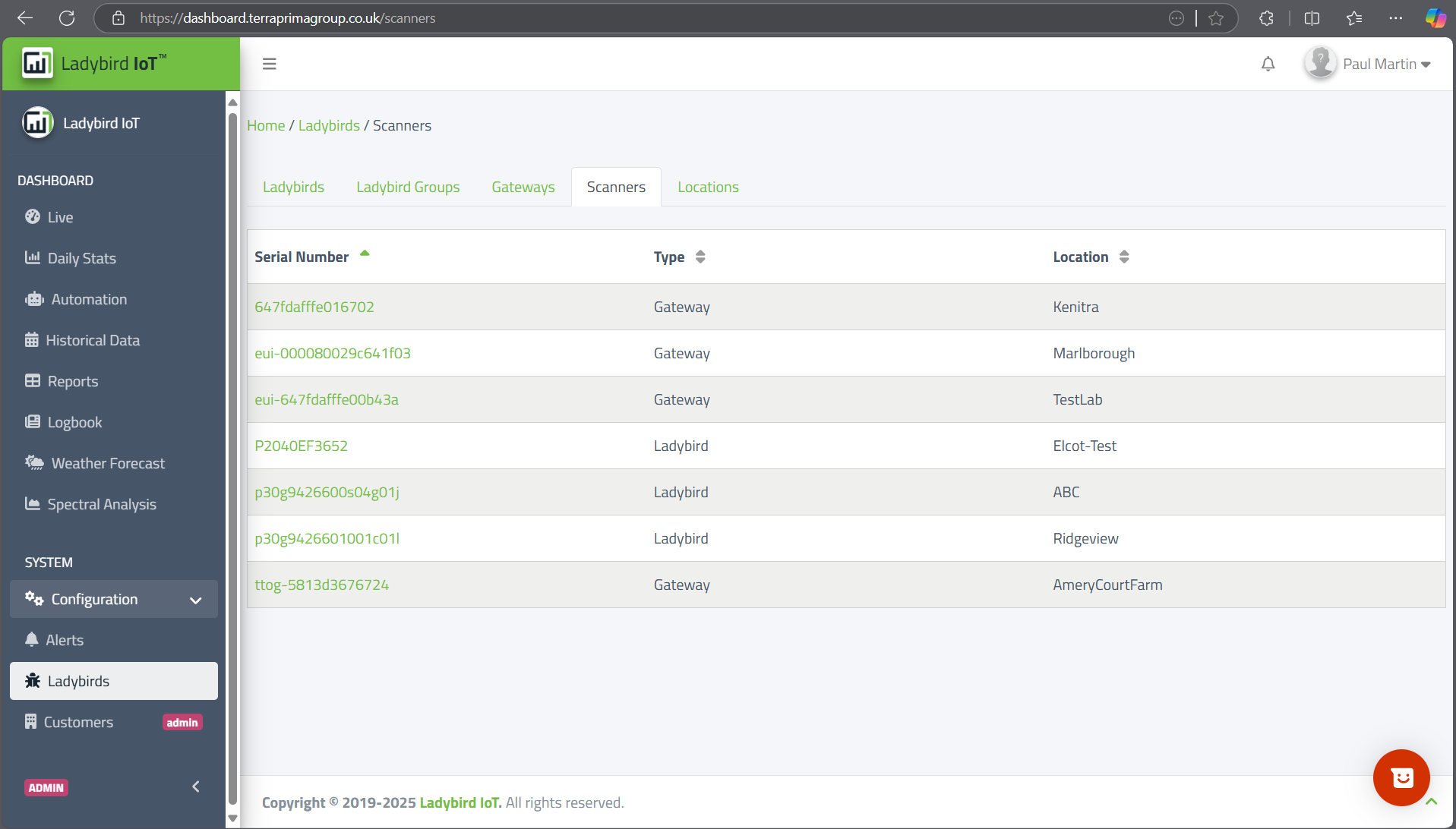
You can also access the list of Scanners you have set up here: https://dashboard.terraprimagroup.co.uk/scanners
Q: How do I delete a Ladybird from the system please?
A: Ladybirds are never actually “deleted” from the systems, they are simply reassigned to some other owner (see below for more on this) or assigned to “no owner”.
NOTE:
Only admins can do the latter, i.e. deleting all ownership from a ladybird.
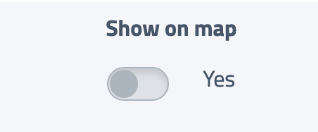
As mentioned before, if you need to do this, you can hide the ladybird from the map (you can do this by selecting the ladybird under https://dashboard.terraprimagroup.co.uk/ladybirds and then turn off “Show on Map”
Q: How do I transfer a Ladybird from one Customer to another?
A: Please refer to the attached document, Section “Use QR code to deploy Ladybird”,
subsection “Move an existing Ladybird to a different existing deployment”.
Once again please note that you can access the same settings even if you don’t have access to the QR code, all is explained at the beginning of the Section.
Q: How do I allocate a new Ladybird to a specific Customer or gateway?
A: This is covered in the attached document. To be specific, you wouldn’t assign a ladybird to a gateway but to an organisation (customer’s company) and location.
Q: How do I find out more info about them please?
A: All the information accessible to you about the gateways on the Dashboard are available here: https://dashboard.terraprimagroup.co.uk/gateways.
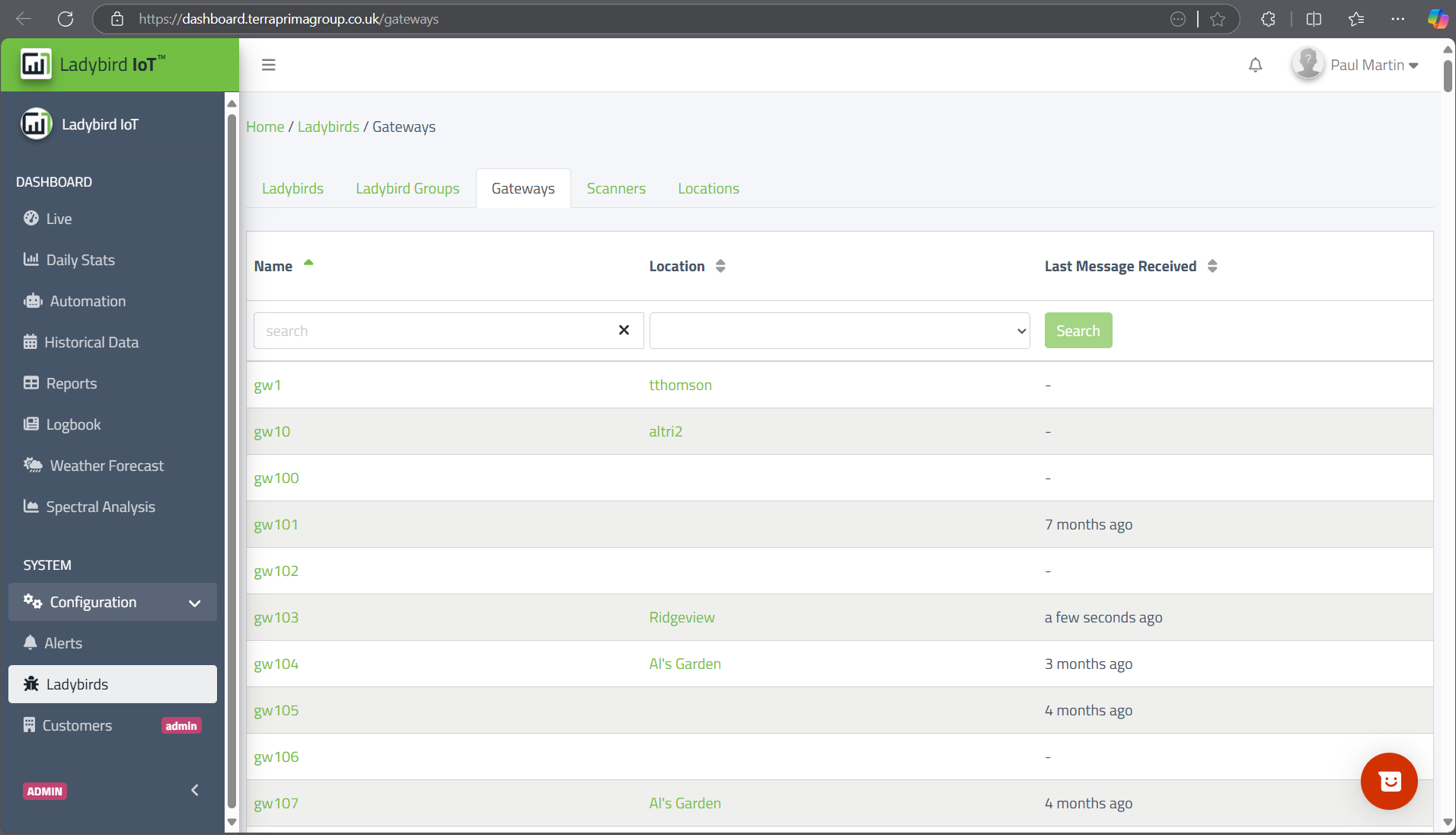
You can click on the specific gateway to access its information. Example: https://dashboard.terraprimagroup.co.uk/gateways/150/edit
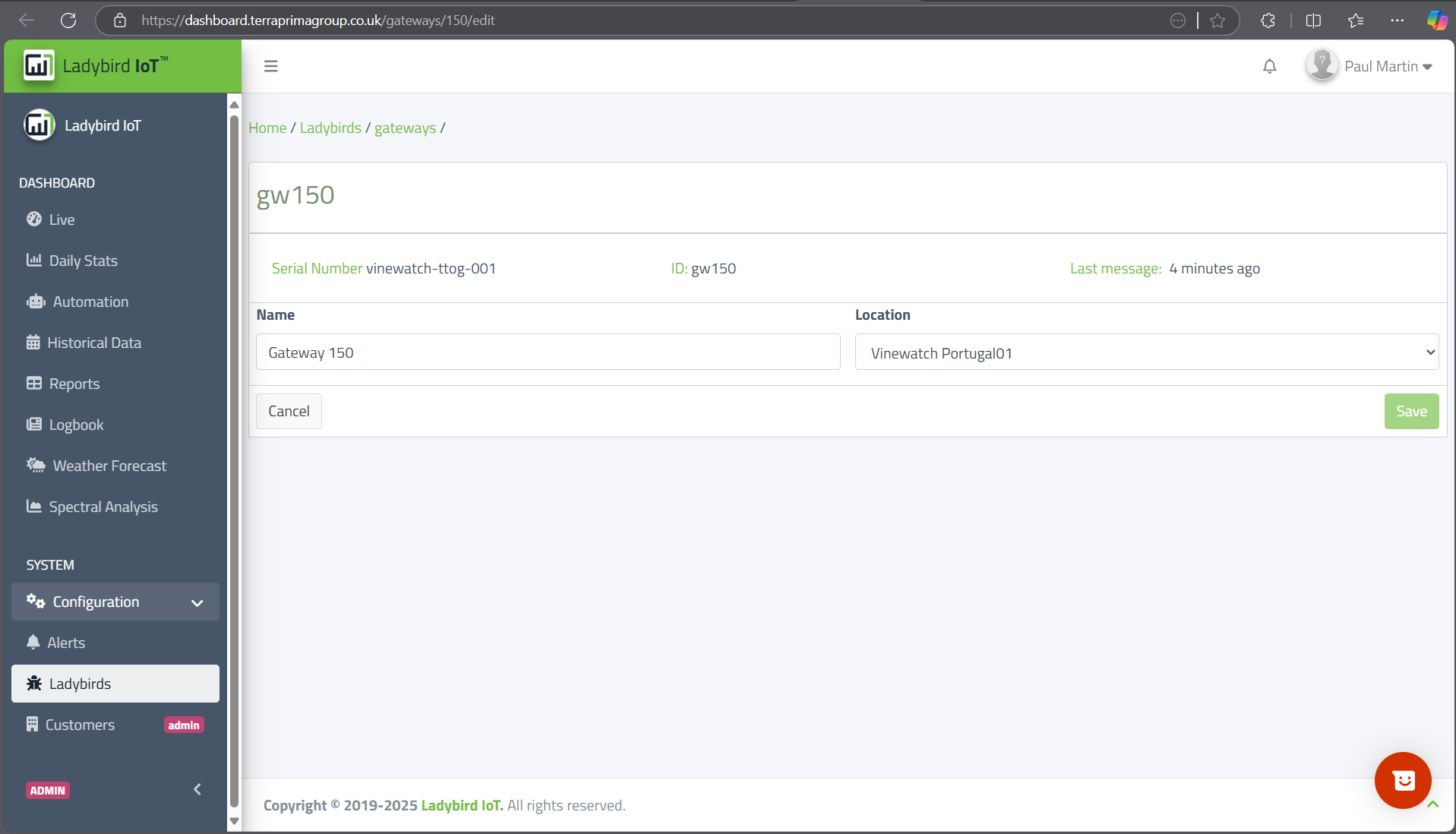
This is where you can also assign a location to the gateway and therefore effectively making it a scanner for that location, i.e. all new ladybirds not yet assigned to any owner will use that gateway to figure out “where” they are and will automatically be assigned to the same location of the gateway. Please do note that this only applicable to Ladybird that have not yet been assigned a location, so basically “new” ladybird only.
If you want to know more about the gateway you could refer to the The Things Stack dashboard – this is in case you have set-up the gateway yourself and therefore have access to it. If you don’t own the gateway then you will only have limited visibility of course.
Q: Can a Ladybird be a member of more than one user group?
For example, can a Ladybird from Ridgeview (Customer)also be a member of the Vinewatch (Distributor) group?
A: You as a distributor have access to all ladybirds assigned to Vinewatch directly and to all the customers that you have brought to the platform.
The list of all your customers is here: https://dashboard.terraprimagroup.co.uk/organisations.
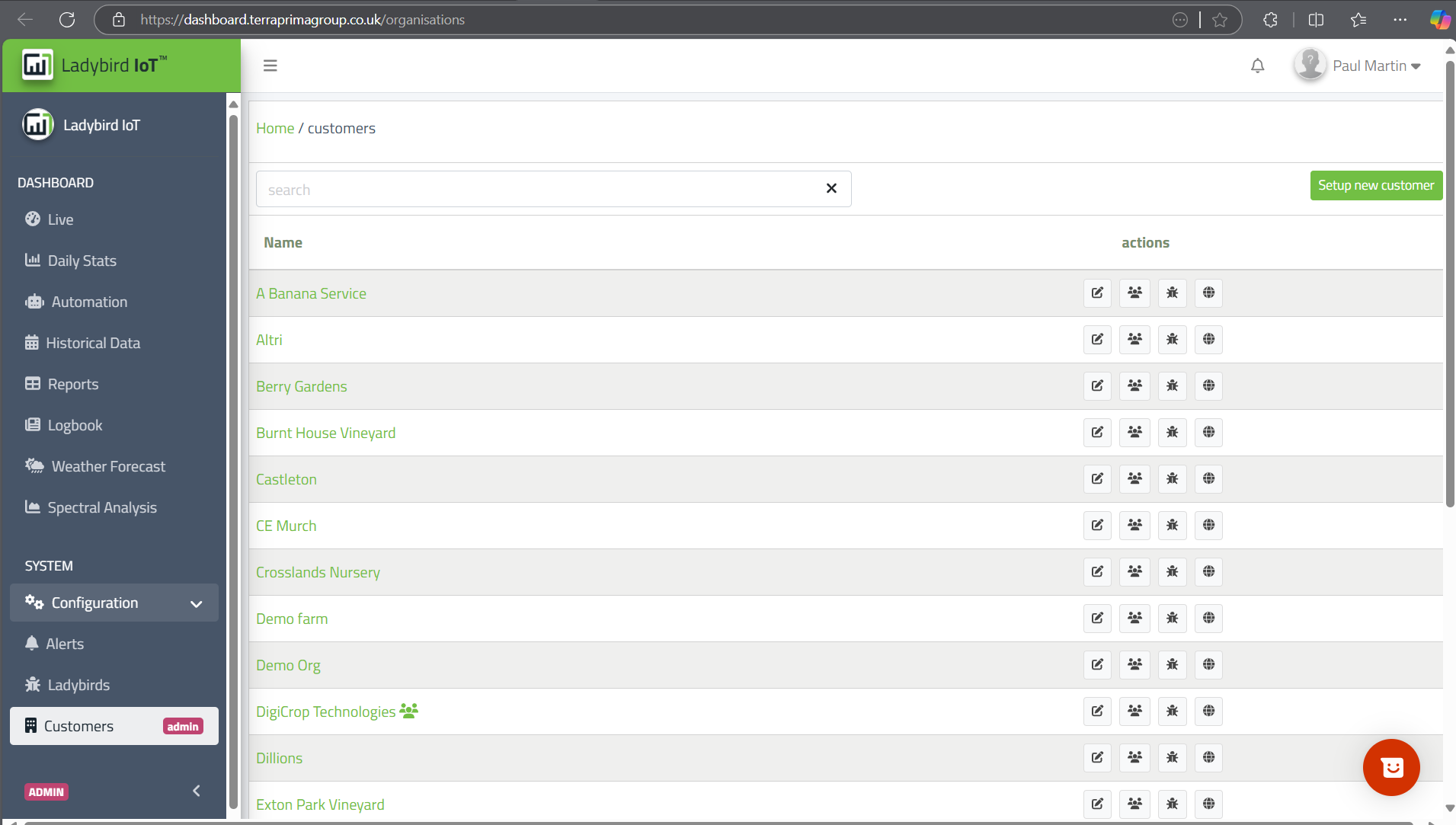
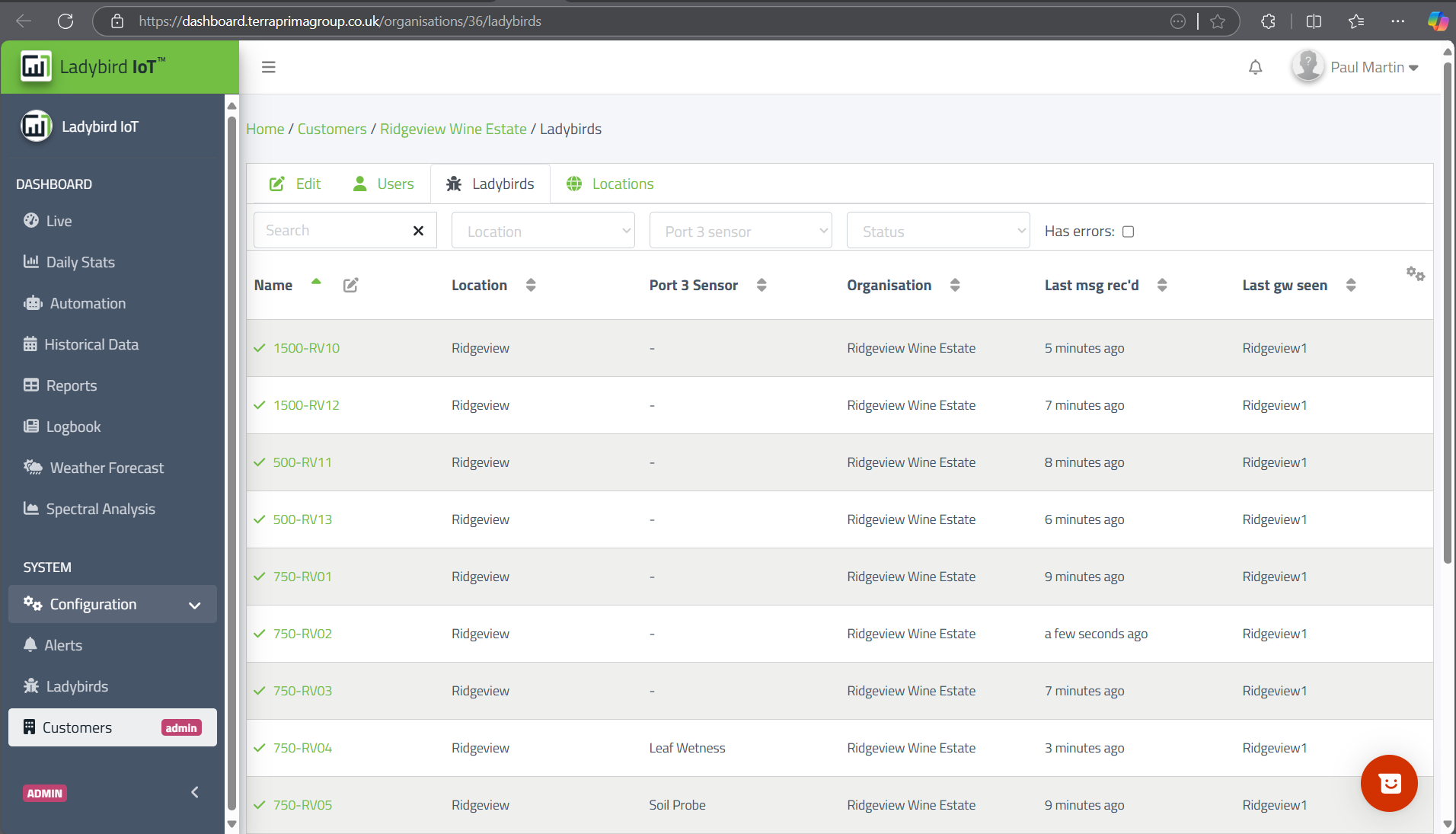
In the case of Ridgeview for instance you can see all ladybirds deployed at Ridgeview here: https://dashboard.terraprimagroup.co.uk/organisations/36/ladybirds
Another important thing to note about this is that you may also be added (or you can add users yourselves) that are neither distributor neither part of the customer’s organisation. A typical example would be for instance if a customer would like to add their agronomist or consultant to the platform and share some of their data with them.
This is what we call giving access to “third party user”.
In your case for instance you are a third party user for Vinescape.
See here: https://dashboard.terraprimagroup.co.uk/organisations/45/users
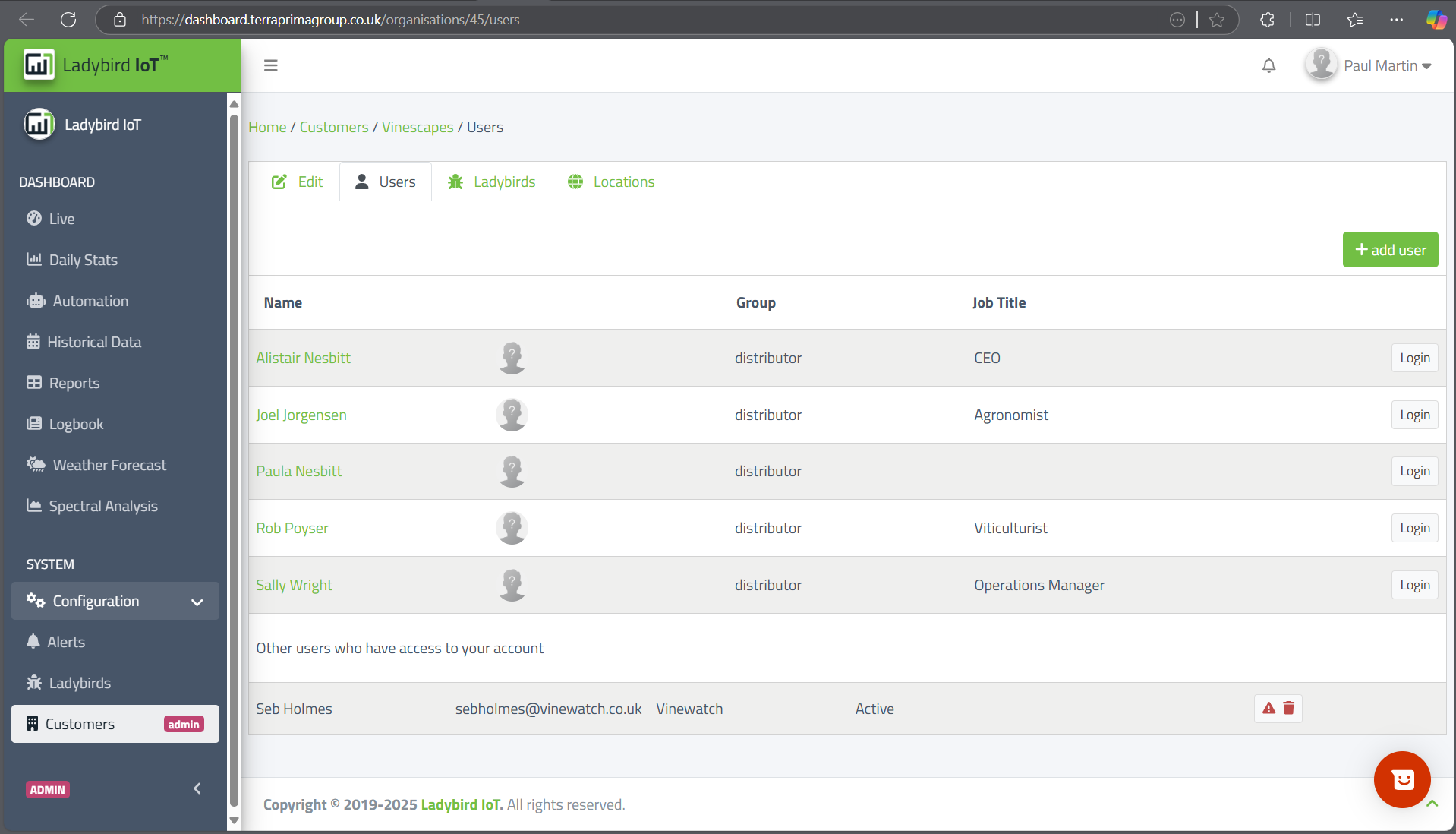
See how you are listed as “other user” and having access to Vinescape’s data even though you are not a Vinescape’s employee nor a distributor for them.